
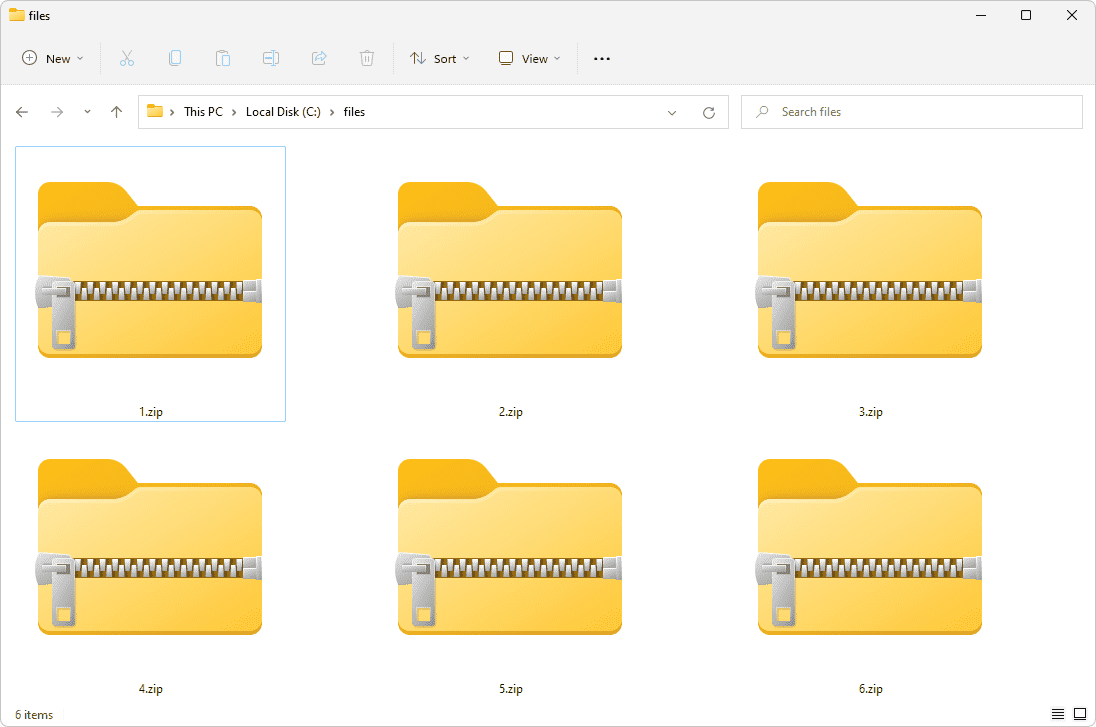
A Zip file is like a digital storage box where you can put several files or folders inside, and it compresses them to save space. Think of it like vacuum-sealing clothes in a bag to make them more compact. By “zipping” your files, you can:
- Save storage space on your computer.
- Easily send multiple files to someone over the internet in one single package.
- Organize files neatly when sharing or archiving.
You’ll usually recognize a Zip file by its “.zip” extension (e.g., documents.zip).
How Does It Compare to Other File Formats?
Different file formats serve different purposes:
- JPEG (.jpg): Specialized in compressing images.
- MP3 (.mp3): Specialized in compressing audio files.
- PDF (.pdf): Specialized in documents, retaining layout across devices.
- Zip (.zip): A general compression format that can contain many types of files and folders.
In other words, JPEG, MP3, and PDF are each designed for a specific type of content, whereas Zip can bundle and compress nearly any type of file.
Why Use a Zip File?
- Saves Space: Compressed files take up less storage.
- Convenient Sharing: Send many files as one single .zip attachment.
- Organization: Keep multiple files or folders together.
How to Open (Unzip) a Zip File on Windows
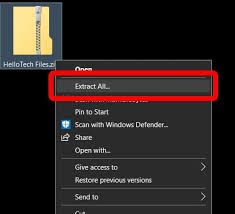
Windows comes with a built-in tool for handling Zip files. Here are two easy methods:
Method 1: Using Windows’ Built-In Zip Utility
- Locate the Zip file: Find the file ending in “.zip” (e.g., photos.zip).
- Right-click on the Zip file: A menu appears.
- Select “Extract All…”.
- Choose a Destination: A window will prompt where to save the unzipped files.
- Click “Extract”: Windows creates a new folder with the same name, containing the unzipped files.
Method 2: Using File Explorer (Windows 10 and Later)
- Double-click the Zip file: It opens like a folder in File Explorer.
- Copy the files: Select the files, then right-click and choose Copy.
- Paste them: Right-click and choose Paste in the folder where you want the unzipped files to go.
How to Open (Unzip) a Zip File on Mac
Mac computers also have a built-in Archive Utility to handle Zip files:
Method 1: Double-click the Zip File
- Double-click the Zip file: For example, documents.zip.
- Your Mac automatically unzips it, creating a folder with the same name in the same location.
Method 2: Right-click (Control-click) and Use “Open With”
- Right-click (or Control-click) the Zip file:
- Select “Open With” > “Archive Utility” (or another unzipping tool).
- A new folder appears with all the extracted files.
Popular Software Tools for Handling Zip Files
While the built-in tools on Windows and Mac often suffice, you may want dedicated software for advanced features like password protection or splitting archives.
- WinZip (Windows & Mac)
https://www.winzip.com
Offers a free trial, then paid. It’s easy to use and supports many formats. - 7-Zip (Windows)
https://www.7-zip.org
Free, open-source, supports .zip, .rar, .7z, and more. - WinRAR (Windows)
https://www.win-rar.com/
Free trial, supports .zip, .rar, and others. Password-protection features included. - The Unarchiver (Mac)
https://theunarchiver.com/
Free, supports various formats (e.g., .zip, .rar, .7z). - PeaZip (Windows & Linux)
https://peazip.github.io/
Free, open-source, user-friendly for multiple formats.
Step-by-Step Guide to Open Zip Files with 7-Zip (Windows)
- Download 7-Zip: Visit https://www.7-zip.org and choose the version matching your Windows (32-bit or 64-bit).
- Install 7-Zip: Run the .exe file and follow the instructions (click “Next” a few times).
- Locate the Zip file: Find your .zip file on the computer.
- Right-click the Zip file: Hover over 7-Zip in the menu.
- Extract the files: Choose “Extract Here” to unzip in the current folder or “Extract files…” to choose a different folder.
- Done: Your files will appear in a new folder.
Free Resources and Where to Download

- 7-Zip (Windows): https://www.7-zip.org
- The Unarchiver (Mac): https://theunarchiver.com
- PeaZip (Windows & Linux): https://peazip.github.io/
Conclusion
A Zip file lets you bundle and compress multiple files into one smaller package, making it easier to store and share. Windows and Mac include built-in tools for unzipping, but if you need extra features (like password protection, support for other formats, or splitting files), free software options like 7-Zip (Windows) or The Unarchiver (Mac) are excellent choices. Enjoy the convenience of compressing and organizing your files quickly and efficiently!
